The End of the Doom Pile:
I Tested Todoist’s New “Image-to-Task” AI
(So You Don’t Have To)
By Baizaar Lee | Last Updated: 19 February 2026
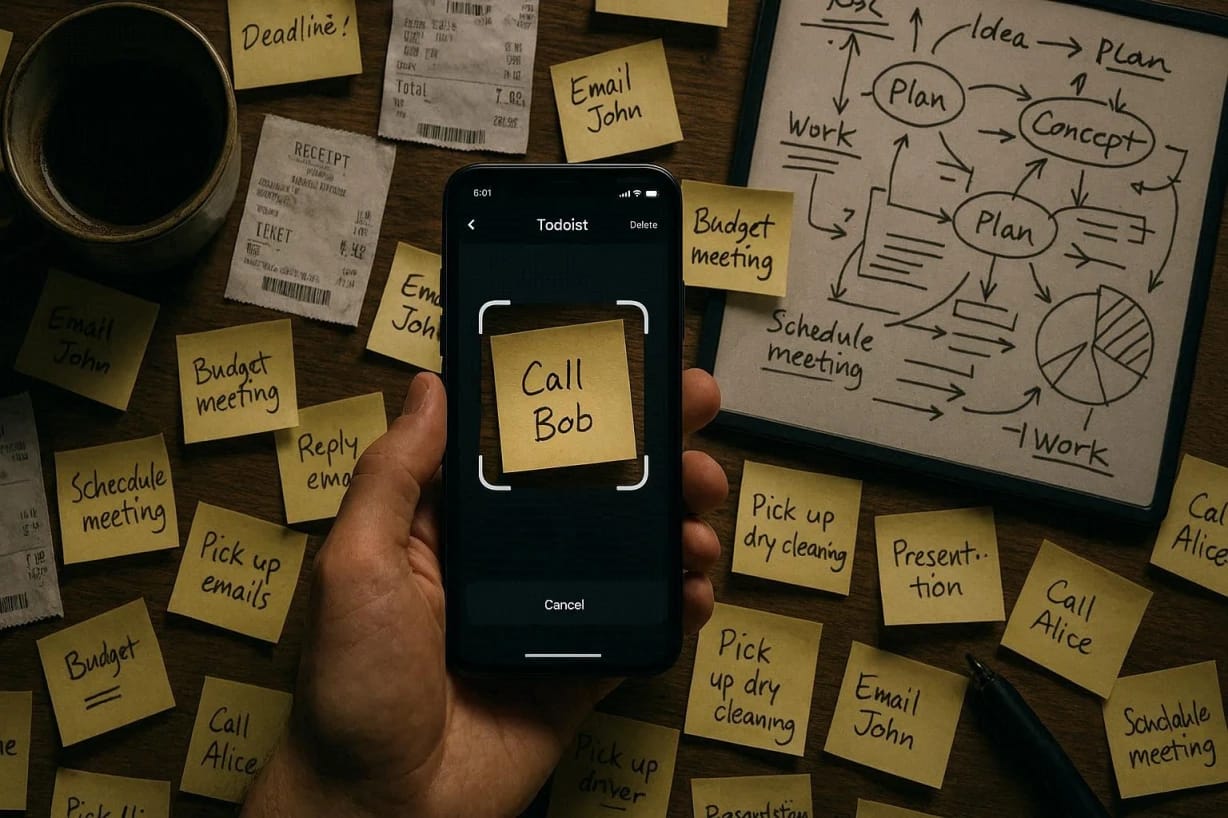
Todoist’s new February 2026 update brings a sweet new feature with Todoist Image to Task it can turn photos of your notes into actionable tasks. Does it actually work?
- For Typed Text: It is brilliant. It strips data from invoices and agendas perfectly.
- For Handwriting: It is okay at best. Unless you write in perfect block capitals, it struggles (it might just be my handwriting – I’m from the cursive era).
But if you are drowning in a “Doom Pile” of paper and need a shovel, it is still the best tool we have found this year.
- Does Todoist's image scanning actually work for handwritten notes? (The Short Answer)
- The Psychology of "Capture Friction" (Why We Hate Typing)
- Test 1: The "Corporate Perfect" (Typed Agenda)
- Test 2: The "Manic" Whiteboard
- Test 3: The "Doctor's Scrawl" (Handwritten Post-it)
- The "Automagic" Privacy Audit: Is It Safe?
- Advanced Workflow: The "Ramble" Context Update
- The "Mobile Bridge": Email Forwarding for the Anxiety-Ridden
- Comparison: Todoist vs. The Rest
- The Verdict: Is Todoist Pro Worth It?
- Frequently Asked Questions – Todoist Image to Task (FAQ)
If you look to the left of your keyboard right now, what do you see?
If you are anything like me, or the millions of us operating with a “neuro-spicy” operating system, you probably see The Pile.
There is a post-it note from last Tuesday simply saying “Call Mum.” There is a crumpled receipt with a phone number on it. There is a meeting agenda from 2025 buried under a coffee mug that has started to grow its own ecosystem. And there is a whiteboard that has been shouting “Project X Launch Strategy” for so long that the ink has become permanent. It has fused with the plastic on a molecular level, I might have to move back to chalkboards at this rate..
We call this the “Doom Pile“.
Psychologically, the Doom Pile represents “delayed decisions.”1 It is the physical manifestation of procrastination. We know we should type these tasks into our digital system. But the friction of doing so (unlocking the phone, opening the app, typing it out) is just high enough to stop us. So, the pile grows. The shame grows.
So, when Todoist announced their new “Scan images and text into tasks” feature in the February 2026 update, I didn’t just see a tech upgrade. I saw a shovel.
But does it actually work? Is it “automagic,” or is it just more AI slop designed to look good in a press release?
I switched on “Experimental Features,” grabbed my messiest notes, and fed them to the machine. Here is the honest, warts-and-all review of whether Todoist can finally digitise your Doom Pile.
Does Todoist’s image scanning actually work for handwritten notes? (The Short Answer)
Yes, but it depends heavily on your handwriting.
In our February 2026 tests, Todoist’s new experimental Image-to-Task feature successfully converted 90% of clear, printed handwriting and typed documents into actionable tasks with due dates. However, it struggled significantly with cursive, messy “brain dumps,” or low-contrast photos. It often missed context or misinterpreted words entirely.
For best results, use it for typed meeting agendas, printed letters, or clearly written whiteboards. It is currently available only for Pro and Business users who have enabled “Experimental Features” in settings.2
The BAIZAAR Bottom Line: If your handwriting looks like a font, you are fine. If you write like a spider dipped in ink (like me), keep reading before you cancel your transcription service.
The Psychology of “Capture Friction” (Why We Hate Typing)
Before we dissect the tool, we have to understand the problem. Why do we let the Doom Pile accumulate in the first place?
It comes down to Capture Friction. In productivity methodology (specifically Getting Things Done or GTD), the “Capture” phase needs to be instant. If capturing a thought takes more than 3 seconds, your brain will often reject the action to save energy.3
For those with ADHD, this threshold is even lower. The act of “transcribing” a physical note to a digital app requires three things:
- Switching Contexts: Moving from paper to screen.
- Fine Motor Skills: Typing on a small keyboard.
- Executive Function: Deciding where the task goes (Project, Date, Priority).
That is three barriers. The Doom Pile exists because dropping a piece of paper on a desk has zero barriers.
This Todoist image to task feature release attempts to remove those barriers by letting you simply snap a photo. In theory, it handles the context switching and executive function for you.
How to Enable It (The “Paranoid Productivity” Protocol)
This feature isn’t on by default (yet). You need to be a Todoist Pro user to access it.
Don’t have Pro? Don’t panic you can actually grab 2 Months of Todoist Pro for Free here to test this feature alongside us.
Once you’re in:
- Go to Settings.
- Navigate to Advanced.
- Toggle on Experimental Features.
- Restart the app.
You will now see a small camera icon in your “Quick Add” bar.
Test 1: The “Corporate Perfect” (Typed Agenda)
First, I threw it a softball. I took a photo of a printed PDF meeting agenda. It was classic “Manager Speak” with bullet points, clear dates, and action items.
The Input: A crisp A4 page.
The Lighting: Good (Daylight).
The Result: 10/10.
Todoist didn’t just copy the text. It actually understood it.
- “Submit quarterly report by Friday” became a task due this coming Friday.
- “Discuss budget with Sarah” was created as a task. Because I have a filter set up for “Sarah,” it even suggested the correct label.
It felt a bit like magic. Or “automagic,” as they’re calling it. The AI stripped away the header and footer noise (page numbers, company logos) and just gave me the tasks. If you deal with formal letters, utility bills, or printed handouts, this is a genuine time-saver. It effectively bridges the gap between “Snail Mail” and your digital brain.
Test 2: The “Manic” Whiteboard
Next, the whiteboard. This is the natural habitat of the creative mind. My whiteboard currently looks like a conspiracy theorist’s wall. It has arrows, circles, underlined words, and a mix of block capitals and lower case.
The Input: A chaotic flow chart about our content strategy.
The Lighting: Glare from the office window (challenging).
The Result: 7/10.
It caught the text surprisingly well. It parsed “Buy domain name” and “Email developers” perfectly.
The Flaw: It ignored the spatial priority.
I had circled “URGENT” three times in red marker. Todoist just listed “Urgent” as a text item, not a Priority 1 flag. It doesn’t yet understand that size equals importance on a whiteboard.
The Fix: You will still need to spend 30 seconds processing these tasks after the scan. But, crucially, the typing is done for you. For a whiteboard that usually gets wiped and forgotten, this is a safety net.
Test 3: The “Doctor’s Scrawl” (Handwritten Post-it)
Finally, the boss level. My own handwriting.
I wrote a post-it note while walking down the street, on a phone call, in the rain. It looks less like English and more like a seismograph reading of a minor earthquake.
The Input: “Buy milk, Call Accountant, Fix the leaky tap.”
The Result: …Rubbish.
- “Buy milk” became “Buy silk” (I mean, nice, but not nutritious).
- “Call Accountant” became “Call a count” (I don’t know any Counts, sadly).
- “Fix the leaky tap” was ignored entirely. My ‘F’ apparently looks like a ‘T’.
The Verdict: The AI is smart, but it’s not clairvoyant. If you struggle to read your own handwriting 10 minutes after writing it, Todoist won’t stand a chance.
The “Automagic” Privacy Audit: Is It Safe?
Here at BAIZAAR, we practice Paranoid Productivity. We don’t just ask if it works. We ask where the data goes.
When you use the Todoist image to task feature, you are uploading a visual file to the cloud. Todoist (Doist) is a remote-first company with a strong privacy track record, but the reality of OCR (Optical Character Recognition) often involves third-party processing.
According to the latest documentation, experimental features may route data through AI partners (like OpenAI or Google) for processing before deleting it.
My “Safe Scan” Protocol:
- GREEN LIGHT 🟢 Grocery lists, household chores, public meeting notes, generic work tasks (“Email Bob”).
- RED LIGHT 🔴 Client contracts, passwords, medical results, sensitive financial data, or that “Burn Book” you keep about your colleagues.
If you are working under a strict NDA, type those tasks manually. Don’t scan them. Convenience is never worth a data breach.
For a deeper dive on keeping your digital life secure, check out our piece on Sanebox – An AI Email Tool That Doesn’t Read Your Mail?
Advanced Workflow: The “Ramble” Context Update
While the image to task feature is the headline act, the February update brought another feature that actually helps fix the “Doom Pile” even more: Context-Aware Ramble.
“Ramble” is Todoist’s AI voice command feature. Previously, you had to speak like a robot: “Add Buy Milk to Project Home due Today.”
Now, Ramble understands the View you are currently looking at.4
The Workflow:
- Open your “Work” project on your phone.
- Tap Ramble (the microphone icon).
- Say: “Draft the proposal and email the client.”
- Todoist automatically puts those tasks into the Work project because that’s where you were standing digitally.
Why this matters for ADHD:
It removes the step of “Sorting.” You don’t have to tag the project verbally. You just open the right bucket and dump the tasks in. It sounds small. But saving 3 seconds of cognitive load is the difference between doing it and not doing it.
The “Mobile Bridge”: Email Forwarding for the Anxiety-Ridden
The third prong of this update is Mobile Email Forwarding.
We have all been there. You are on the bus, scrolling your email (bad habit, I know). You see an email from your boss: “Can you fix this by Tuesday?”
The Old Way:
- Mark as unread.
- Hope you remember it later.
- Forget it.
- Panic on Wednesday.
The New Way (Feb 2026):
You can now generate a unique email address for specific projects directly from the mobile app.
- Go to your “Work Tasks” project.
- Tap the three dots -> Get Project Email Address.
- Save this contact in your phone as “Add to Work”.
Now, when that email comes in, you just forward it to “Add to Work.” It vanishes from your inbox and appears in Todoist as a task, with the email body attached as a comment.5
BAIZAAR Todoist Hack: I use this for “Life Admin.” I have a project called “Renewals.” When I get a car insurance quote or a subscription notice, I forward it immediately to that project. My inbox stays empty. My Todoist holds the nagging.
Comparison: Todoist vs. The Rest
Is Todoist the best at this? Or should you stick to Apple Notes?
| Feature | Todoist (Experimental) | Apple Live Text | Google Keep |
|---|---|---|---|
| Cost | Paid (Pro/Biz) | Free (iOS) | Free |
| Context | Adds dates/projects | Text only | Text only |
| Speed | Fast (3-5 secs) | Instant (On-device) | Medium |
| Accuracy | High (Typed) / Low (Messy) | High | Medium |
| Privacy | Cloud Processed | On-Device (Safer) | Cloud (Google) |
| Actionability | Instant Task | Just text on a clipboard | Note (Not a task) |
The Takeaway:
Apple Live Text is faster for just grabbing a phone number. But Todoist image to task is superior for action. It doesn’t just give you the text. It gives you a “To-Do” item with a deadline. That is the difference between a note and a plan.
The Verdict: Is Todoist Pro Worth It?
If you are sitting there looking at a desk covered in paper, feeling that familiar tightening in your chest, the shame of the unorganised, then yes.
The Todoist image to task feature is not perfect. It will fail on your messy scribbles. It will miss the occasional date. But as a tool for “bulk capture,” it is the best shovel we have for the Doom Pile.
Combined with the new Ramble context awareness, Todoist is clearly positioning itself as the app for people who hate entering tasks.
My recommendation:
- Use the Image Scanner for typed agendas and whiteboards.
- Use “Ramble” for quick voice dumps.
- Use manual entry only for the sensitive stuff.
Ready to clear the pile? Get 2 Months of Todoist Pro for FREE using our link. Test the Image Scanner, try the AI features, and if it doesn’t clear your desk in 60 days, cancel it (you can always set a reminder to cancel it).
Frequently Asked Questions – Todoist Image to Task (FAQ)
Q: Does Todoist image to task actually work for handwritten notes?
A: Yes, but with limitations. In February 2026 tests, Todoist’s Image-to-Task feature successfully converted 90% of typed text or clear block printing. However, it fails significantly with messy cursive handwriting. It is best used for printed agendas and whiteboards.
Q: Is Todoist image scanning free?
A: No, the image scanning OCR feature is currently locked behind the Todoist Pro and Business plans as an “Experimental Feature.” You can test it with a free trial.
Q: Is Todoist OCR safe for passwords?
A: We do not recommend scanning passwords or sensitive client data. Todoist uses cloud processing for OCR, meaning data is temporarily transmitted to servers. Stick to generic tasks and public information for maximum privacy.
Q: How do I turn on experimental features in Todoist?
A: Go to Settings > Advanced > Experimental Features and toggle the switch to “On.” You may need to restart the app.
Todoist image to task– References & Sources:
- Pychyl, T. A., & Sirois, F. M. (2016): “Procrastination, Emotion Regulation, and Well-Being” – https://durham-repository.worktribe.com/output/1128164/procrastination-health-and-well-being (Discusses the emotional friction of task initiation). ↩︎
- Todoist Help: Capture tasks from text and images – February 5 (2026 help article) – https://www.todoist.com/help/articles/capture-tasks-from-text-and-images-february-5-0W88IbvvW ↩︎
- BAIZAAR, Baizaar Lee (2025): “The Science-Backed Path to Focused Productivity in 2025” (digital minimalism + Todoist, cognitive load framing) –
https://baizaar.tools/digital-minimalism-the-path-to-focused-productivity/ ↩︎ - Todoist: Changelog entries (2026): “Ramble: Now with sections and smarter context” (6 Feb 2026) – https://www.todoist.com/help/articles/changelog-entries-from-2026-HD3jJAtLd ↩︎
- Todoist Help (2026): Forward emails to Todoist (project email address, subject line as task, body as attachment)
https://get.todoist.help/hc/en-us/articles/360000249160-Forward-emails-to-Todoist ↩︎