
Baizaar’s
Todoist FAQ & Knowledge Hub

All your Todoist FAQ inside our dedicated knowledge hub sharing our latest Tips, Tricks and Insights with a dedicated Todoist FAQ on this page and more distinct questions answered throughout our expanding range of Todoist posts on Baizaar Tools. Master task management like a pro with expert guides, hidden features, and proven hacks. Solve common questions, boost productivity, and unlock your Todoist knowledge & full potential without the brain strain.

A Painless Todoist ADHD Setup: Dopamine-Driving into 2026 Success
Stop fighting your brain. Discover the realistic Todoist ADHD setup that prioritises voice capture, energy filters, and forgiveness over…
Master Your ADHD Systems: The Complete 2026 Setup Guide for Focus, Organisation & Digital Security
Master Your ADHD Systems: The Complete 2026 Setup Guide for Focus, Organisation & Digital Security Let’s be honest for a…
Todoist Ramble Voice Tasks – The Magic That’ll Change Task Capture in 2026.
Todoist Ramble Voice Tasks turns your spoken thoughts into organized tasks instantly. Learn how voice-to-task automation saves you time…
Todoist for ADHD: A Real‑World Playbook for Focus, Routines & Saner Days for 2026
Use Todoist as an ADHD‑friendly second brain. Learn simple, research‑aware setups for focus, routines and home life — plus…
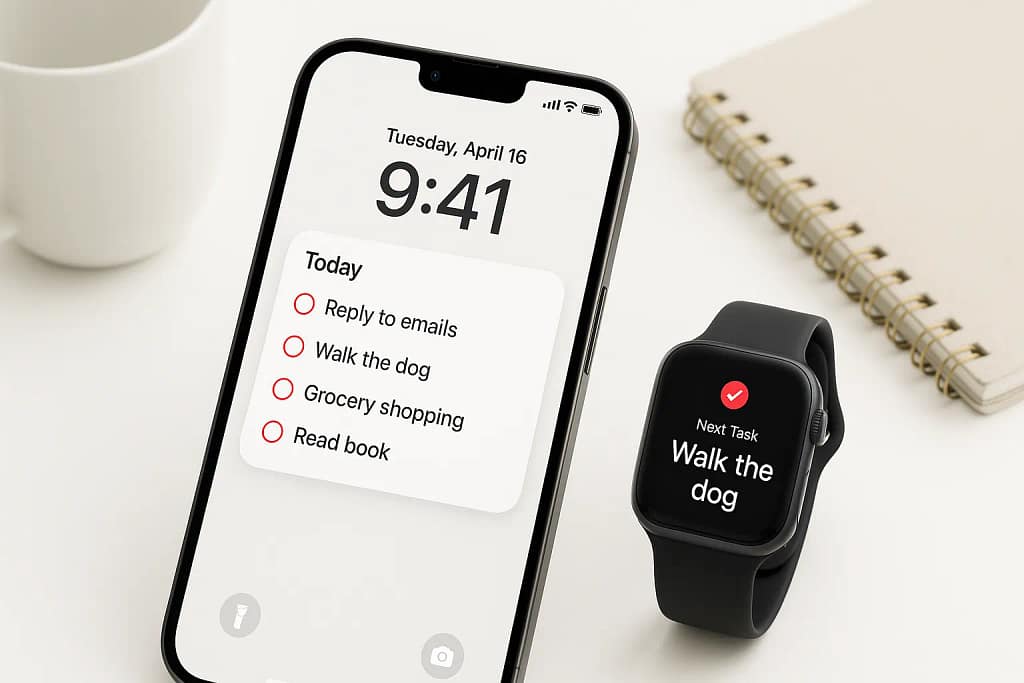
Todoist Pro for iOS: Dominate 2025 with Habits That Actually Stick (+ 2 Months Free)
Todoist Pro for iOS: Dominate 2025 with Habits That Actually Stick (+ 2 Months Free) Todoist Pro for iOS: Dominate…

Time Management at Work in 2025: The Practical Todoist Playbook to Reclaim Your Day
Time Management at Work in 2025: The Practical Todoist Playbook to Reclaim Your Day “Time is a non-renewable resource; treat…
Ultimate ADHD Home Organization Guide: 13 Rooms, 400+ Tasks, Destroy Overwhelm Forever
Master ADHD Home Organization with a room-by-room declutter plan, a smart Todoist checklist, and a 2-month Todoist Pro trial…
Todoist vs Notion 2025: Which Productivity Powerhouse Wins? (Honest Comparison)
Todoist vs Notion 2025: Which Productivity Powerhouse Wins? (Honest Comparison) Todoist vs Notion 2025: Which Productivity Powerhouse Wins? (Honest Comparison)Introduction…

Game-Changing Todoist ADHD Hacks: 9 Hidden Features That Supercharge Focus
Game-Changing Todoist ADHD Hacks: 9 Hidden Features That Supercharge Focus Game-Changing Todoist ADHD Hacks: 9 Hidden Features That Supercharge FocusUnderstanding…
Todoist FAQ
1. Todoist Basics & Onboarding
1.1 What is Todoist and how does it work?
Todoist is a task and project management app that lets you capture tasks, assign due dates, apply priority levels, and organize work into projects. You can group tasks under projects, add labels and filters to slice your list in different ways, and use natural language typing (for example “Tomorrow at 3pm”) to set dates quickly. It syncs across devices (web, desktop, and mobile), making it easy to keep one central to‑do list whether you’re working solo or collaborating with a small team. For power users, Todoist supports recurring tasks, reminders (on paid plans), and integrations with tools like Google Calendar, Slack, and more.
1.2 Is Todoist free or paid, and which plan should I choose?
Todoist has a free plan plus several paid tiers that unlock more advanced features. The free plan is ideal for individuals who are getting started with digital task management and only need a limited number of active projects. Paid plans expand limits on projects and collaborators, add reminders, more file uploads, labels and filters, and advanced productivity reports.
If you rely heavily on deadlines, collaboration, and recurring workflows, a paid plan is usually worth it; otherwise, the free version is enough to trial the system and see if Todoist fits your style.
1.3 How do I set up Todoist for the first time?
To set up Todoist, start by creating a few high‑level projects, such as Work, Personal, and Errands. Then, add tasks into those projects and use natural language due dates (for example, “today”, “Friday”, “every Monday”) so you immediately see them in your “Today” and “Upcoming” views. Next, define a simple priority system (for example, use Priority 1 for must‑do‑today tasks and Priority 2–4 for less urgent items). Finally, spend a week refining: archive unused projects, rename items for clarity, and consider adding labels for contexts such as @phone, @deep work, or @errands.
1.4 What are the key Todoist features I should know about first?
For new users, the most important Todoist features are:
- Projects to group related tasks.
- Due dates and recurring dates to keep deadlines visible.
- Priorities to separate must‑do tasks from nice‑to‑do tasks.
- Labels to tag tasks with context (place, energy level, people).
- Filters to create custom views like “High‑priority work tasks due this week”.
Learning these five features is usually enough to build a reliable productivity system in Todoist.
1.5 Can Todoist replace my paper planner or other to‑do apps?
Todoist can replace a paper planner if you’re willing to commit to digital capture and daily review habits. Unlike paper, Todoist makes it easy to reschedule tasks, add recurring items, and search across your entire history. Compared to other to‑do apps, Todoist is particularly strong at cross‑platform support, fast task entry, and robust filtering. Many users keep a small notebook for quick notes but rely on Todoist as the “source of truth” for all actionable tasks.
2. Todoist Productivity Workflows & Use Cases
2.1 What is the best Todoist setup for personal productivity?
A strong personal Todoist setup usually includes:
- 3–7 core projects (e.g., Work, Personal, Health, Finance, Learning).
- A simple priority system where only a handful of tasks get the top priority each day.
- Labels for energy levels like
@quick(under 5 minutes),@deep work, and@low energy. - A daily review routine to clean up overdue tasks and focus on 3–5 key actions.
Start simple and only add complexity (like more labels or filters) when you consistently feel limited by your current setup.
2.2 How can I use Todoist as a second brain or knowledge hub?
While Todoist is task‑centric, you can still use it as a lightweight “second brain” by combining tasks with reference links and notes. Create projects like Reading List, Ideas, or SOPs (standard operating procedures) where tasks represent items to consume or maintain. Within each task, use the description area to store quick notes, checklists, or links back to more detailed documents and tools, such as Baizaar.tools. You can then build filters like “Ideas with no due date” or “SOP tasks to review monthly” to keep your knowledge system active instead of static.
2.3 What are some advanced Todoist workflows for power users?
Advanced workflows often revolve around filters, templates, and integrations.
For example, you can build a filter that shows “high‑priority tasks due in the next 3 days in specific projects”, creating a single command center for your week.
Templates let you reuse project structures—for instance, a podcast episode checklist or a recurring product launch sequence.
Integrations with calendars, note‑taking apps, or automation platforms allow Todoist to trigger or respond to events across your entire tool stack.
2.4 How do I use Todoist for GTD (Getting Things Done)?
To use Todoist for GTD, start by having a dedicated Inbox where all new tasks are captured without friction.
During processing, move each item into the right project, assign a clear next action description, and apply labels like @next, @waiting, or @someday.
Use filters to create GTD views, such as “Next actions by context” or “Waiting for responses”.
Finally, schedule a weekly review using a recurring Todoist task so you can update projects, clean up loose ends, and clarify priorities.
2.5 How can remote teams use Todoist to manage projects?
Remote teams can use Todoist by treating each project as a shared workspace for tasks, discussions, and deadlines.
Tasks can be assigned to specific people, with comments used for quick clarifications or updates without leaving the app.
Labels and sections help group tasks by sprint, feature, or functional area, while filters can show each teammate their focused view of assigned tasks.
For lightweight, async projects, Todoist can be enough on its own; for more complex setups, you can pair it with dedicated documentation and communication tools.
3. Todoist Integrations
3.1 How can I use Todoist together with BAIZAAR?
You can pair Todoist with BAIZAAR by letting Todoist capture and schedule your action items while BAIZAAR provides the playbooks, templates, and micro‑tools to execute those tasks faster. For example, when you create a recurring task like “Weekly content planning”, you can include a link to a specific BAIZAAR workflow right in the task description.
This turns Todoist into the when and BAIZAAR into the how, giving you a lightweight but powerful operational system.
Over time, you can build a library of Todoist tasks that all point to reusable tools and frameworks stored in Baizaar.tools.
3.2 What are the best Todoist integrations for productivity?
The best integrations depend on your stack, but common powerful ones include calendar sync (Google or Outlook), communication apps (Slack, Teams), and note‑taking tools. Calendar sync helps you see tasks next to meetings, while communication integrations let you turn messages into Todoist tasks without copy‑pasting. If you work with automation platforms, you can create workflows that automatically create tasks from forms, CRM changes, or emails.
By connecting Todoist and key apps, you create a more consistent flow from ideas to execution.
3.3 Can I automate Todoist workflows without coding?
Yes, you can automate Todoist workflows using no‑code tools and pre‑built integrations.
Common automations include creating tasks from form submissions, turning important emails into tasks, and syncing tasks with calendar events. You can also set up rules such as “if a task is added to a specific project, then assign it to a particular person and add a default label”.
These automations reduce manual admin work and make Todoist feel more like an intelligent assistant than a passive lis
3.4 How do I link Todoist tasks to external tools and resources?
Within a Todoist task, you can paste any URL, this is including links to documents, dashboards, and BAIZAAR workflows directly into the description or comments.
This makes each task a mini “launchpad”, where clicking one link opens exactly the resource you need to complete the work.
You can standardize this by creating templates: for example, every “Client onboarding” task includes links to the same checklist, CRM record, and contract template.
Over time, this reduces friction and dramatically shortens the time from seeing a task to actually doing it.
4. Todoist Templates, Systems & Examples
4.1 What are the best Todoist project templates for small businesses?
Small businesses often benefit from Todoist project templates like Client Onboarding, Marketing Calendar, Product Launch, and Operations Checklists. Each template can contain a series of tasks grouped using sections such as “Prep”, “Execution”, and “Follow‑up”. You can then clone these templates for each new client, campaign, or project, ensuring consistency without reinventing the wheel. Pairing templates with BAIZAAR resources gives every project a documented process plus the tools to complete each step efficiently.
4.2 How can I create a weekly review system in Todoist?
Start by creating a recurring task called Weekly Review scheduled for a consistent day and time.
In the task description, include a checklist such as “Clear Inbox”, “Review Next 7 Days”, “Update Projects”, and “Capture New Goals”.
You can also store links to dashboards or BAIZAAR review templates that guide you through reflective questions.
Completing this review each week keeps your Todoist Knowledge workspace clean, up‑to‑date, and aligned with your priorities.
4.3 What Todoist filters should I use to stay focused?
Effective filters simplify your view so you only see what matters right now.
Popular examples include:
- “Today & high priority” for a daily battle plan.
- “Next 7 days, work projects only” for weekly planning.
- “Overdue tasks by priority” for cleanup sessions.
Start with 2–3 filters that match your current pain points, and only add more when they solve a specific recurring problem.
4.4 How do I use labels in Todoist without overcomplicating things?
Keep labels simple by focusing on context, energy, and people.
For context, use labels like @home, @office, or @on the go; for energy, labels like @deep work or @quick; and for people, labels like @manager or @client.
Avoid creating labels for every tiny variation; instead, ask if a label truly changes when and where you’ll do that task. If your labels start to feel overwhelming, consolidate them into a smaller, more durable set.
4.5 How can I use Todoist to manage recurring processes and SOPs?
Treat recurring processes as checklists inside a recurring Todoist task or template project.
For example, a monthly finance review can be a task with a checklist that includes “Download statements”, “Reconcile accounts”, and “Update dashboard”.
You can link each checklist step to a more detailed SOP or tool in Baizaar.tools so you never have to remember the full process from scratch.
This approach turns Todoist into an operational control panel for repeatable, high‑quality work.
5. Todoist Troubleshooting, Best Practices & Optimization
5.1 Why does Todoist feel overwhelming and how can I fix it?
Todoist can feel overwhelming if too many tasks are overdue, poorly named, or lacking clear priorities.
Start by doing a “cleanup sprint”: reschedule or delete stale tasks, archive unused projects, and clarify any vague task titles.
Next, limit how many tasks you allow on your Today view and only use top priority on a small number of items.
Finally, create a habit of checking Todoist at specific times (for example, morning planning and afternoon review) so tasks don’t accumulate unnoticed.
5.2 How do I keep my Todoist Inbox under control?
Treat the Inbox as a temporary capture zone, not long‑term storage.
Schedule regular processing sessions where you decide, for each item, whether to delete it, turn it into a clear next action, or move it into a project with a date.
Using a simple rule like “Nothing stays in Inbox longer than 24–48 hours” helps keep the system tidy. You can also create a processing checklist to follow during each session until it becomes second nature.
5.3 How can I measure my productivity inside Todoist?
Todoist offers built‑in productivity metrics like completed task counts and streaks, but you can also create your own indicators.
For instance, you might track a small number of keystone tasks each day, such as deep work sessions or strategic projects.
You can use labels or project tags to mark these and then review how many you completed each week.
Pairing these insights with external dashboards or review templates can give you a richer view of your performance over time.
5.4 What are the most common mistakes people make with Todoist?
Common mistakes include overcomplicating projects and labels, never archiving completed or irrelevant projects, and turning Todoist into a wish list instead of a real action list.
Another mistake is scheduling everything for “today”, which quickly leads to overwhelm and neglected tasks. People also forget to define the next physical action for bigger tasks, leaving them vague and hard to start.
The fix is to keep your system lean, be realistic with dates, and regularly refine your setup based on how you actually work—not how you wish you worked.
5.5 How can I customize Todoist for my personal workflow instead of copying others?
Use other people’s setups as inspiration, but treat them as experiments rather than rules.
Start by identifying your real constraints: time of day when you work best, typical task types, team size, and preferred tools.
Then, tweak Todoist elements—like project structure, labels, filters, and review rituals. One change at a time, evaluating each over a couple of weeks.
Document what works in a simple “My Todoist Operating Manual” task or BAIZAAR page so your system becomes more intentional over time.
Can you send me some screenshots of your Todoist Pro ADHD setup? This would help me alot to get going without chasing shiny red objects.
Thanks a million!
Tom
I am currently undergoing a bit of a rehaul myself but I intend to share it once I’ve completed it! Apologies but it wouldn’t be of much value to you right now in this state of flux aha. I appreciate you reaching out Tom 🙂
Thanks for the reply. Hope the overall is going smoothly. Looking forward to getting some insight to your new set ups!